

For most of the history of internal software, the review step came with the people who built it. Engineers wrote the code, another engineer reviewed it, and a release process decided when it shipped. IT rarely had to approve individual apps, because the path to production already had people on it whose job was to look.
That path assumed the builder was an engineer. Today a finance analyst can build an expense policy checker in Claude Code in an afternoon, and a marketing ops lead can build a marketing budget tracker the same week. Those apps are useful, and they usually need access to real systems: the expense platform, the finance system, Slack, the data warehouse. The review step that came with engineering doesn’t come with them.
The one control IT has without approvals
Without an approval step, IT’s main control over what goes live is who is allowed to deploy. Both settings of that control cause problems.
If everyone who builds can deploy, a new app can go live, connected to company systems, without anyone else looking at it first. If only a small group can deploy, every request queues behind that group, and builders start looking for somewhere else to run their apps, often somewhere IT can’t see.
Neither setting matches where the risk in a deployment actually sits.
Where the risk in a deployment sits
Most deployments are routine: a corrected label, a new filter, a faster query. A few change what an app is or what it can reach.
The first deployment of a new app puts something in front of colleagues for the first time. A deployment that adds an authentication gives an app access to a system it couldn’t touch before, which changes how much damage a mistake can do. Those are the deployments worth a review, and software can tell them apart from the routine ones automatically.
Example: the default policy holds new apps and new authentications.
| Change | Why | Result |
|---|---|---|
| First deployment of the Expense Management Dashboard | Nothing from this app is live yet | Waits for approval |
| An update that adds a Slack authentication | The live version doesn’t use Slack | Waits for approval |
| An update that changes the alert wording | Same authentications as the live version | Goes live |
| An update that removes the Google Drive authentication | Removing access doesn’t count | Goes live |
| Restoring an earlier approved version | Rollbacks skip approval | Goes live |
With the default policy, only new apps and new authentications wait. Choose every deployment instead to hold everything.
Deployment approvals in Tray Helix
Tray Helix takes the apps your teams build with AI assistants to production, runs them there, and governs them. Deployment approvals, available in Helix once your Tray contact enables them, hold a deployment until someone approves it. You choose which deployments wait and who approves them.
Choose what waits
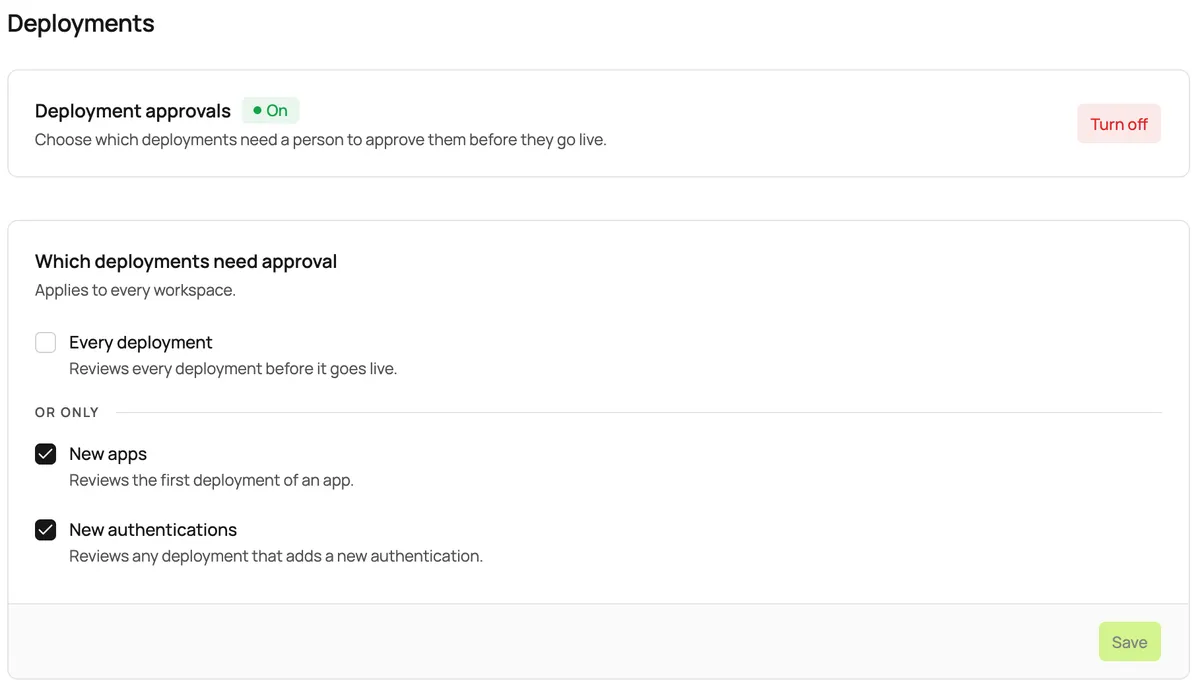
An organization owner or admin turns approvals on in Organization settings, under Policies, and picks which deployments need approval:
- New apps, meaning a project’s first deployment, before anything from it is live.
- New authentications, meaning a deployment that uses an authentication the live version doesn’t. Keeping or removing authentications doesn’t count.
- Every deployment, for organizations that want to review everything.
New apps and new authentications are selected by default. The policy applies to everyone who deploys, including owners and admins, CI pipelines, and coding agents deploying on someone’s behalf.
Choose who approves
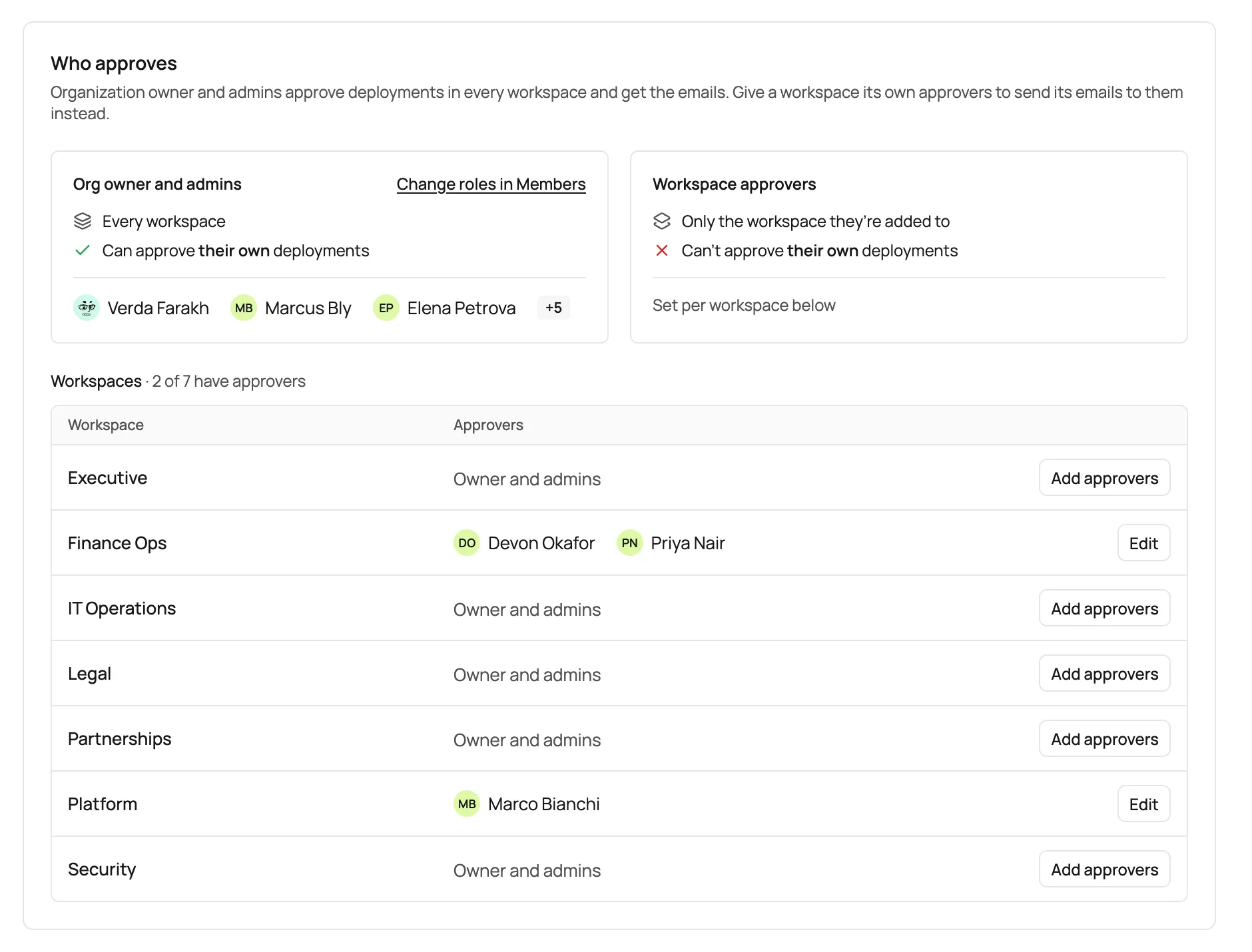
Owners and admins can approve any deployment. You can also give a shared workspace its own approvers, such as the team that owns the apps in it. That workspace’s approval emails go to its approvers instead of the admins, and a workspace approver can’t approve their own deployment.
This is how approvals avoid becoming a central queue. The finance team can review the finance workspace’s apps, the platform team can review the platform workspace’s, and IT sets the policy for all of them.
What the builder sees
A deployment that needs approval builds as usual, then waits. While it waits, the version that’s already live keeps serving, including its scheduled jobs. A new app isn’t live until its first deployment is approved, and it doesn’t appear in App Library until then.
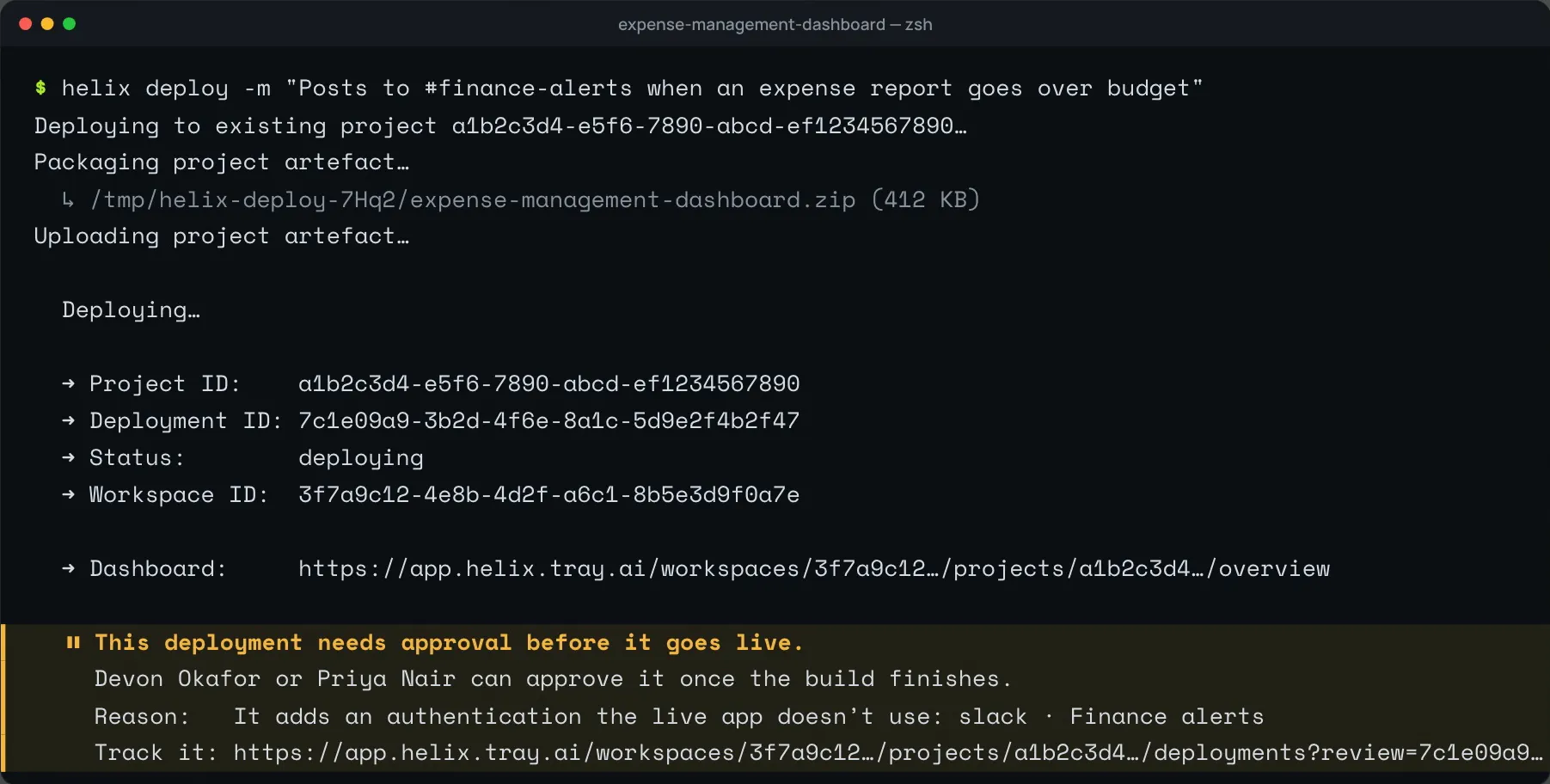
Builders can tell the reviewer what changed and why:
helix deploy -m "Posts to #finance-alerts when an expense report goes over budget"The CLI says when a deployment needs approval, who can approve it, and why. In projects created with CLI 1.18.0 or later, coding agents read the same status, so an agent won’t report a waiting deployment as live or deploy again to get past it.
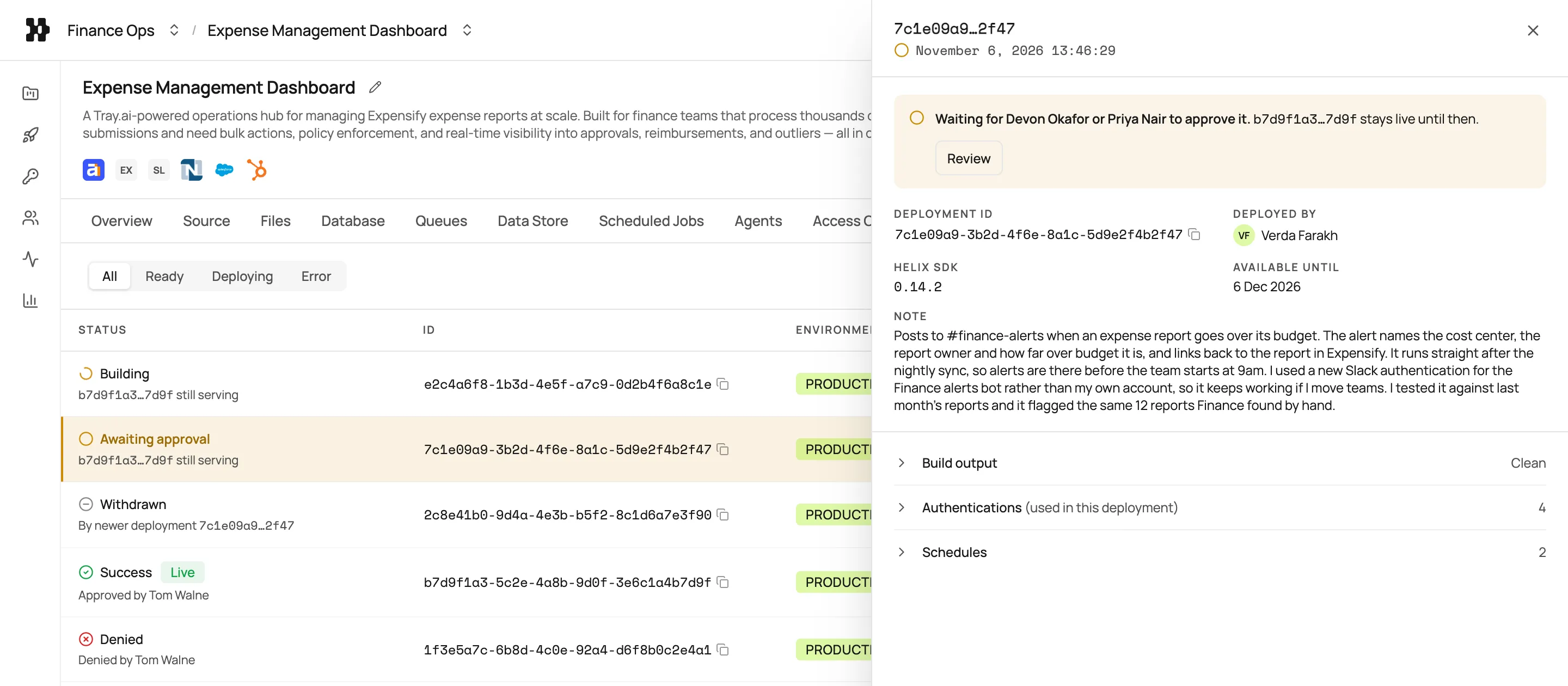
In the dashboard, the waiting deployment names who it’s waiting for, and the earlier build stays live in the meantime. The decision arrives by email with the approver’s message (except CI deploys: check the Deployments tab).
What the reviewer sees
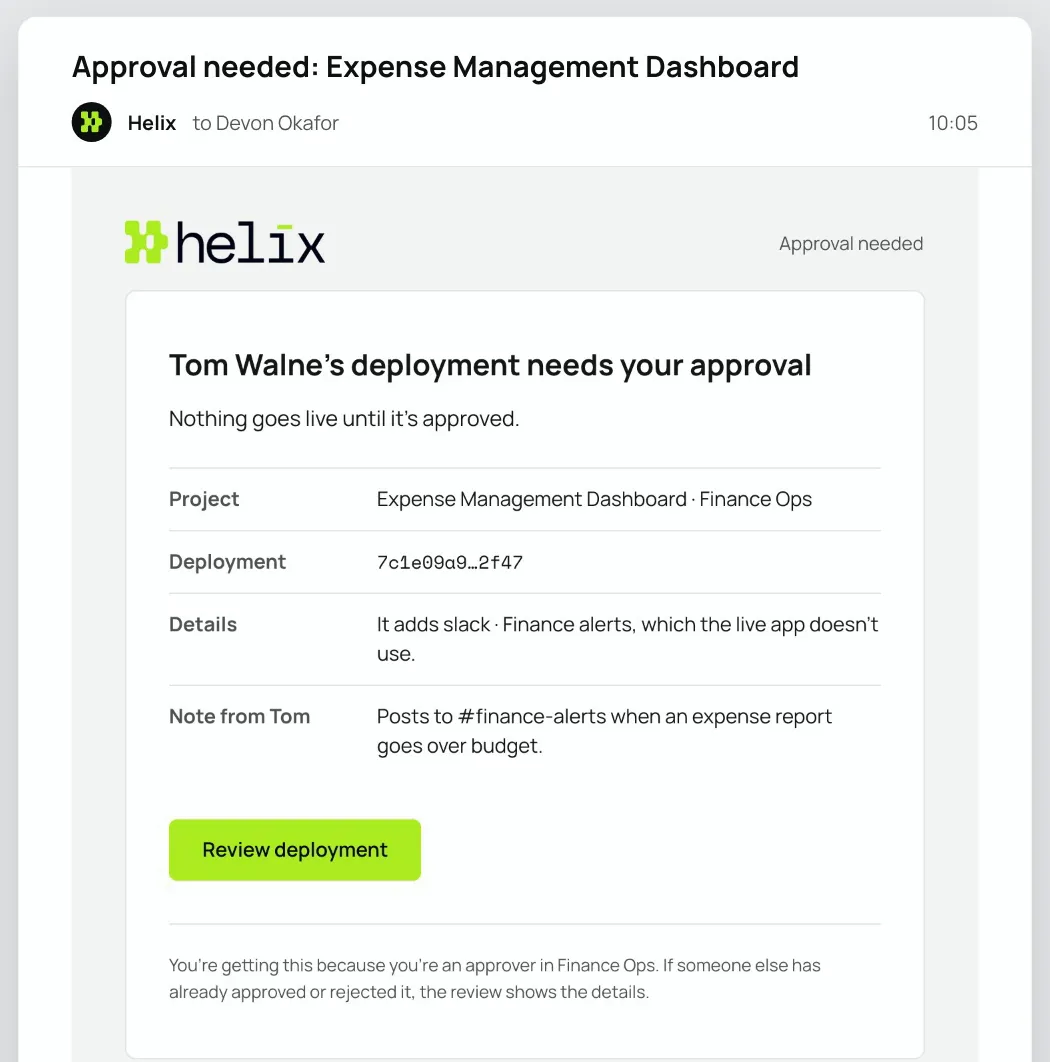
Approvers get an email with what changed, the deployer’s note, and a Review button.
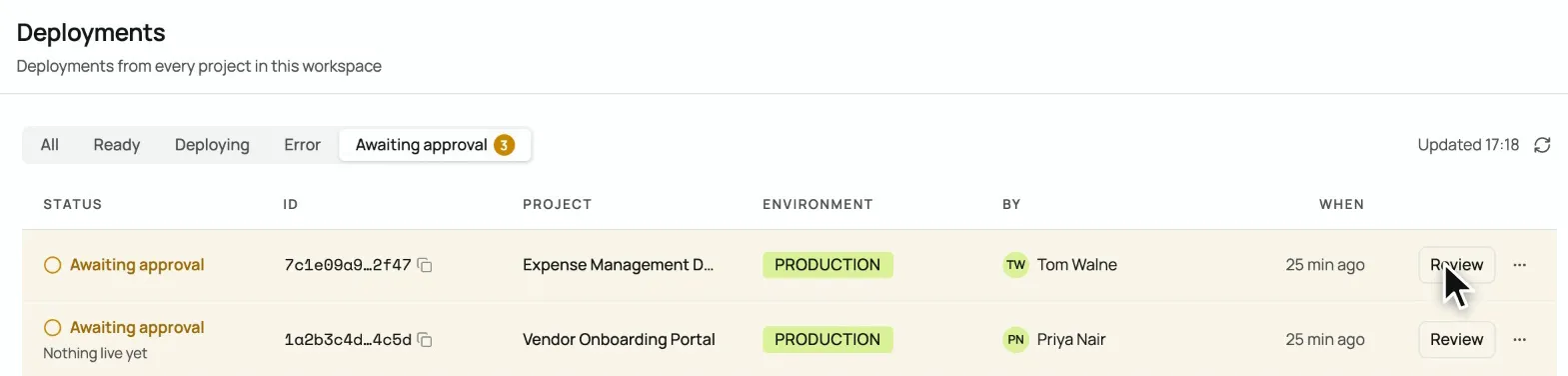
A workspace’s Deployments page shows everything waiting across all of its projects, so a team that approves its own workspace can see its whole queue in one place.
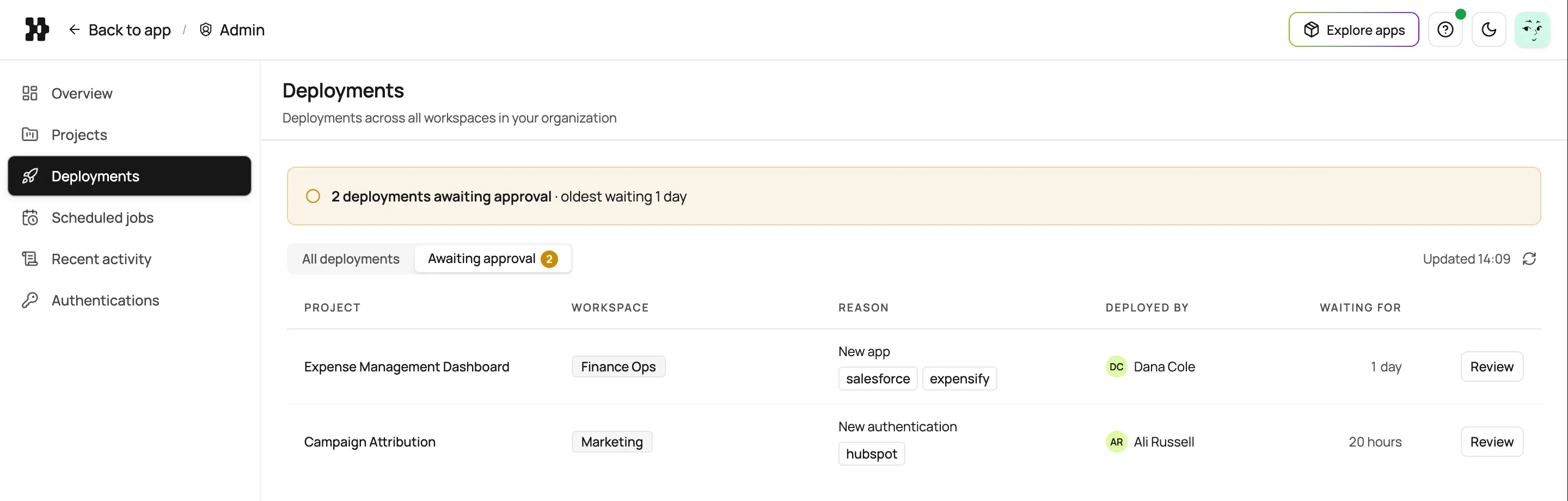
Owners and admins see every waiting deployment in the organization in one list in the Admin console, longest wait first.
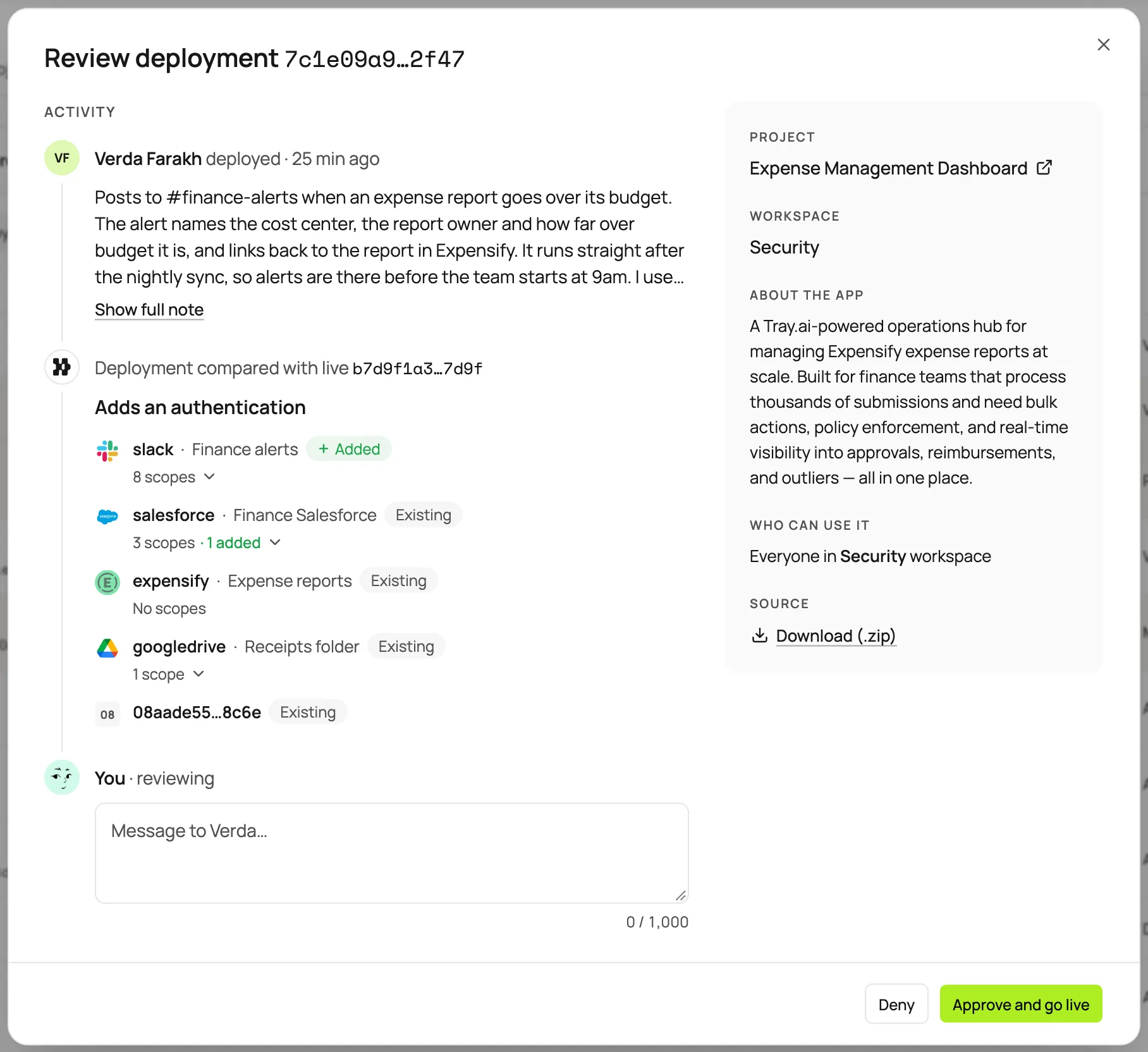
The review shows who deployed and their note, who can use the app, and the source to download. It also shows what Helix checked: whether this is the app’s first deployment, which authentications it adds or removes, and the current scopes of every authentication the deployment uses.
Approving puts that exact build live straight away, without rebuilding it. Denying requires a message, which goes to the deployer by email.
Rollbacks never wait
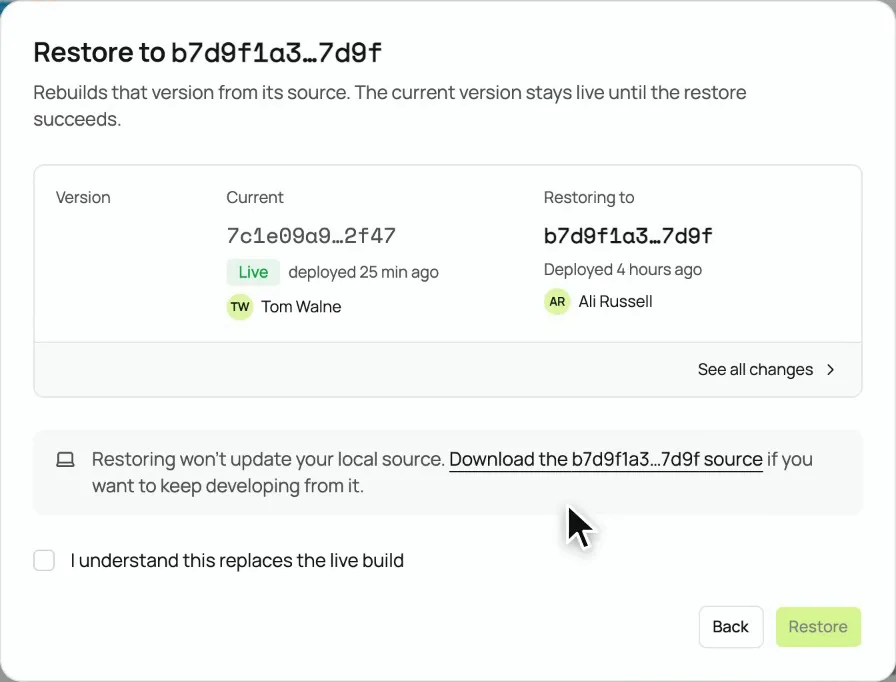
Restoring an earlier version skips approval, whatever the policy says. Helix rebuilds that version, and the current one keeps serving until the restore succeeds. Only versions that were approved, or never needed approval, can be restored, so a restore can’t be used to skip a review.
Every decision is recorded
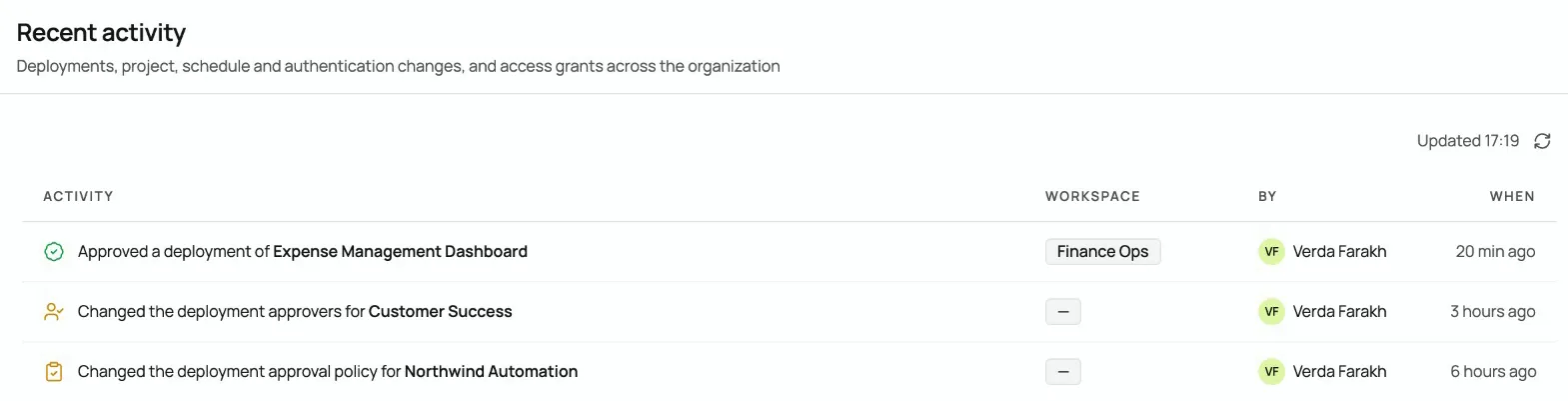
Policy changes, approver changes, approvals, and denials are all recorded in the activity trail. Admins read it under Recent activity in the Admin console.
Where approvals fit
Helix already puts single sign-on, scoped role-based access, managed secrets, and an audit trail on every app it runs. Approvals add a decision point for the deployments that change what an app is or what it can reach, and leave the routine ones alone.
IT keeps control. Builders keep shipping.
Turn it on
- Update the Helix CLI to 1.18.0 or later, including the version pinned in your CI workflows. Earlier versions report a waiting deployment as ready.
- Go to Organization settings, then Policies, then Deployments, and choose which deployments need approval. The deployment approvals docs cover every option.
- Add approvers to any shared workspace whose own team should review its deployments.
If you’re an owner or admin and don’t see Policies, contact your Tray account team.