Deploy
Hold a new app, or a deployment that adds an authentication, until someone approves it. The live version keeps serving while it waits, and each workspace can have its own approvers.
In short
Tray Helix now has deployment approvals. An organization owner or admin chooses which deployments wait for someone to approve them: every deployment, or only new apps and deployments that add an authentication. While a deployment waits, the version that was live before keeps serving. Once it’s approved, that exact build goes live.
Until now, anyone who could deploy a project could put it live, and nobody else had to look at it first. That suits most changes. It doesn’t suit a brand-new app reaching colleagues for the first time, or an update that connects an app to a system it didn’t use before.
Approvals hold those deployments for review. A shared workspace can have its own approvers, such as the team that owns it, so reviews don’t all queue with central IT. Every decision is recorded in the activity trail.
The finance team runs an Expense Management Dashboard on Helix, in their Finance Ops workspace. One of the team adds a Slack alert that posts to #finance-alerts when a report goes over budget. Here is how that change reaches production with approvals on.
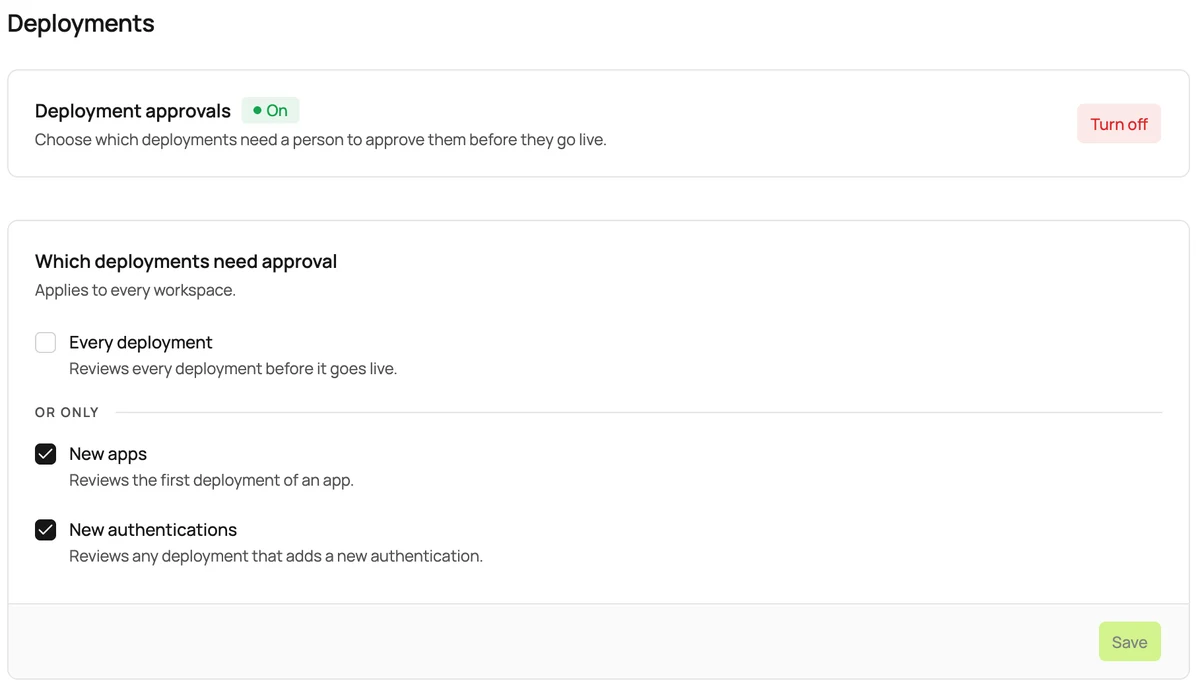
An admin opens Organization settings, then Policies, then Deployments, and turns approvals on with the defaults: new apps and new authentications. Routine updates still go live without waiting.
Under Who approves, the admin adds Devon Okafor and Priya Nair as approvers for Finance Ops. Approval emails for that workspace now go to them instead of the admins, and the admins can still approve too.
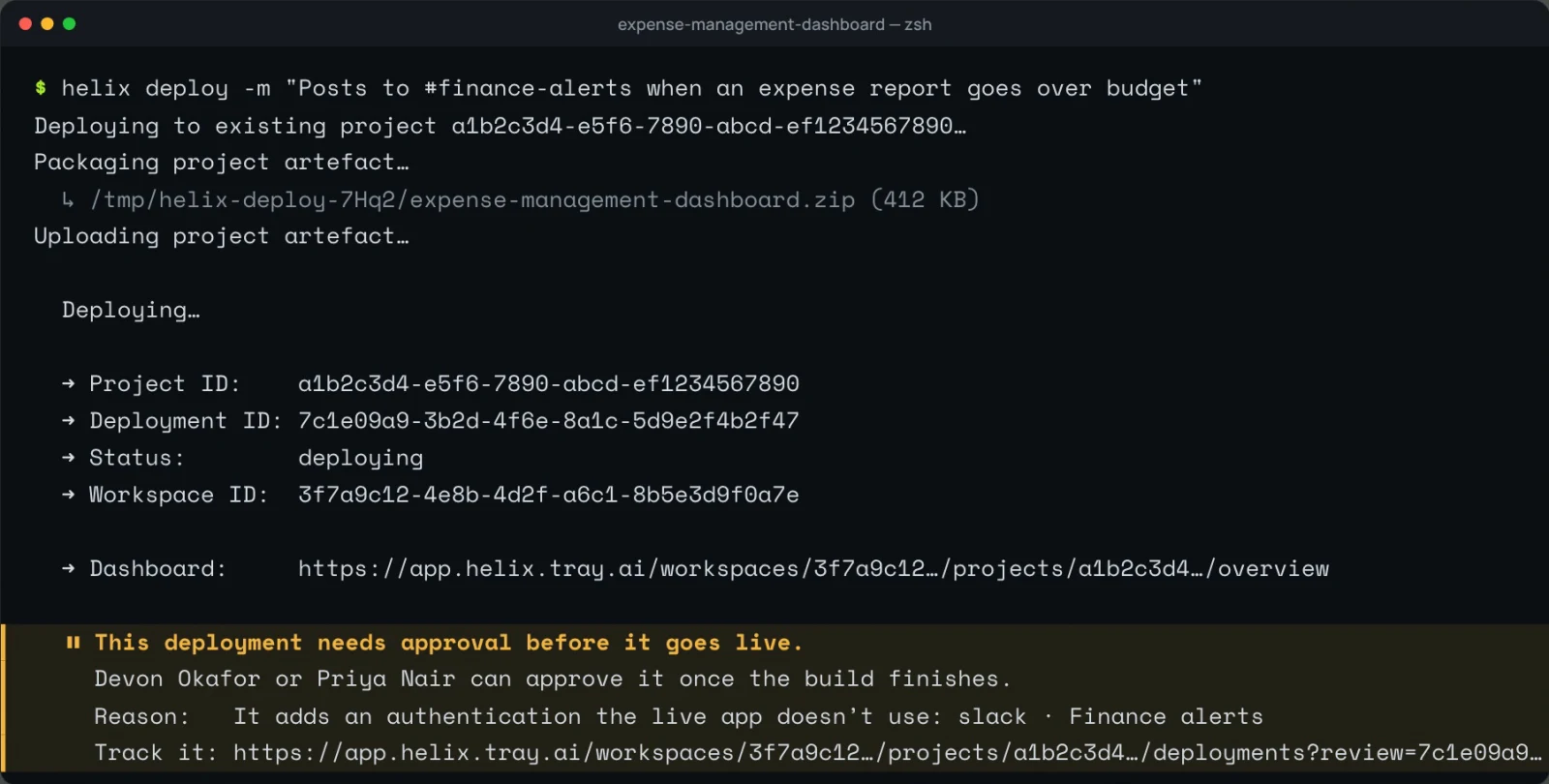
The builder deploys with helix deploy -m and a short note for the reviewer. Because the change adds a Slack authentication the live app doesn’t use, the CLI says the deployment needs approval, why, and who can approve it. The dashboard keeps serving the version that was already live.
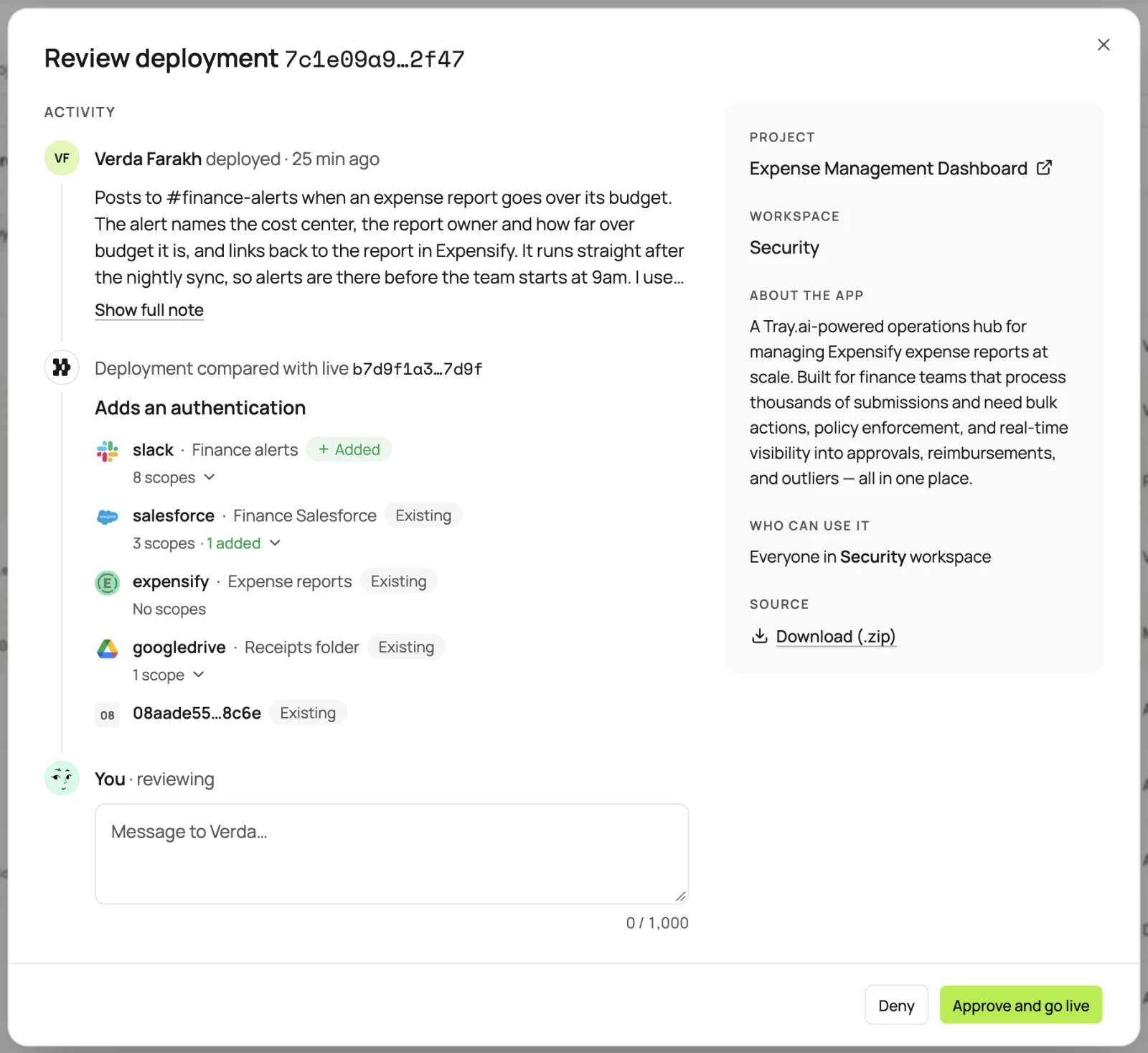
Devon gets an Approval needed email and opens the review. It shows the builder’s note, what Helix checked, including the new Slack authentication and the scopes on each authentication the app uses, who can use the app, and the source to download.
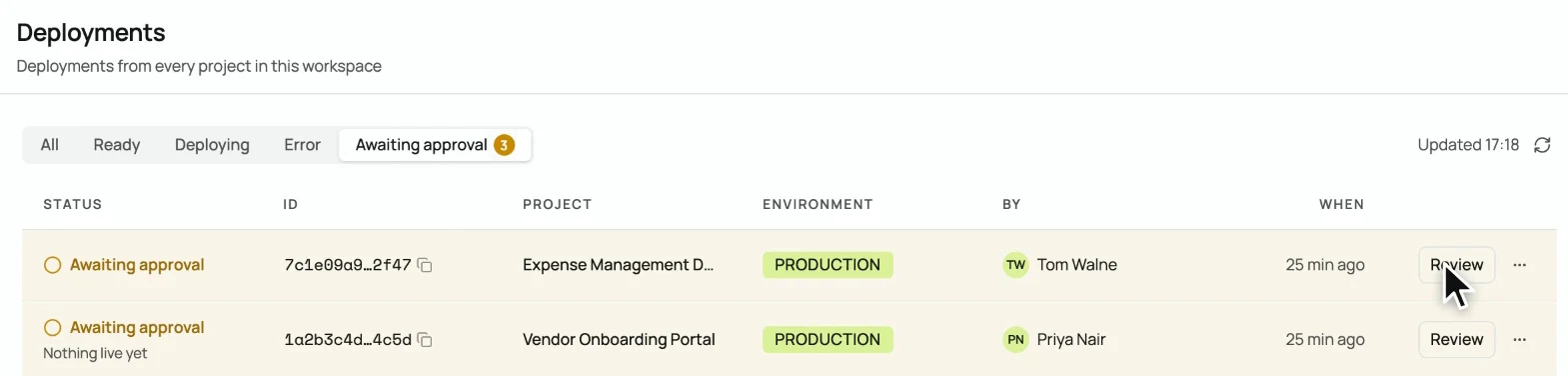
Finance Ops’s Deployments page shows everything waiting across all of the workspace’s projects, so Devon and Priya can see their whole queue in one place.
Devon chooses Approve and go live. The build goes live straight away, without being rebuilt, and the builder gets an Approved email. If the alert causes problems next week, anyone who can deploy the project can restore the earlier version from the Deployments tab without waiting for a new review.
The live app keeps running. A waiting deployment is built but not live. The version that was live before keeps serving, including its scheduled jobs.
Only the deployments you choose wait. With the defaults, an update that keeps the same authentications, or removes some, goes live as it always has.
The team that owns a workspace can review it. Workspace approvers get that workspace’s emails and decide its deployments. A workspace approver can’t approve their own deployment.
Reviewers see one build at a time. A project has at most one deployment waiting. A newer one that also needs approval replaces it, and the older one is marked Withdrawn.
Rollbacks don’t wait. Restoring a previous deployment skips approval. Only a deployment that was approved, or never needed approval, can be restored, so a restore can’t put an unapproved build live.
Every decision is on the record. Policy changes, approver changes, approvals, and denials all appear under Recent activity in the Admin console.
Update the CLI, including in CI. CLI versions before 1.18.0 report a waiting deployment as ready, as if it were live. Workflows created with helix ci init keep the CLI version they were written with, so bump that too.
A passing CI job doesn’t mean the app is live. With approvals on, the deploy job passes once the build succeeds. The deployment goes live when it’s approved. CI deploys get no Approved or Rejected email, so check the Deployments tab for the decision.
Owners and admins can approve their own deployments. So approvals don’t guarantee that a second person reviews their changes. The activity trail records who approved each deployment.
The review shows the source, not a diff. Download the source to read the code. Approvals are a person’s sign-off and don’t scan code.
One policy covers every workspace. There are no per-project rules, and you can’t exempt a person or an API user. Only who approves differs between workspaces.
Turning approvals off approves what’s waiting. Deployments already waiting go live as if you had approved them, and the activity trail records you as the approver.
The ones you choose: every deployment, or new apps, new authentications, or both. New apps and new authentications are selected by default. The same choice applies in every workspace.
The organization owner and admins can approve any deployment, including their own. A shared workspace’s approvers can approve that workspace’s deployments, except their own. Everyone else sees a read-only preview.
Nothing changes for its users. The version that was live keeps serving until someone approves the new one. A new app isn’t live until its first deployment is approved, and it doesn’t appear in the App Library until then.
Who deployed and when, their note, what Helix checked (whether it’s the app’s first deployment, which authentications it adds or removes, and the scopes on each authentication), who can use the app, and the source to download.
It never goes live. The approver has to write a message, which goes to the deployer by email. A denied deployment can’t be approved later, so the deployer fixes the change and deploys again.
No. Everyone’s deployments follow the policy, including the owner’s and admins’, deploys from CI, and deploys by coding agents.
Tool approval is for agents: an agent pauses before running a tool until a person says yes. Deployment approvals decide whether a new build of an app goes live.
Deployment approvals aren’t turned on for your organization yet. Ask your Tray contact.
Deploy an app you built with your AI assistant, and see what Helix does with it.
Thanks, keep an eye on your inbox for an invite.
Want to talk to someone first? Contact us
