Deploy
Choose an earlier deployment in the Deployments tab and Helix rebuilds it as a new deployment. The version that's live keeps serving until the rebuild succeeds.
In short
Tray Helix can restore a previous deployment. In the project's Deployments tab, choose Restore this version on the deployment you want, and Helix rebuilds that deployment's stored source through the normal build pipeline and ships it as a new deployment. It takes as long as any deploy, never takes the app offline, and brings back code, not data.
Restore puts an earlier deployment of a project back live. You pick it in the Deployments tab, and Helix rebuilds that deployment’s stored source through the normal build pipeline and ships the result as a new deployment. Nothing is switched back to an old build, and the app doesn’t go offline while it happens.
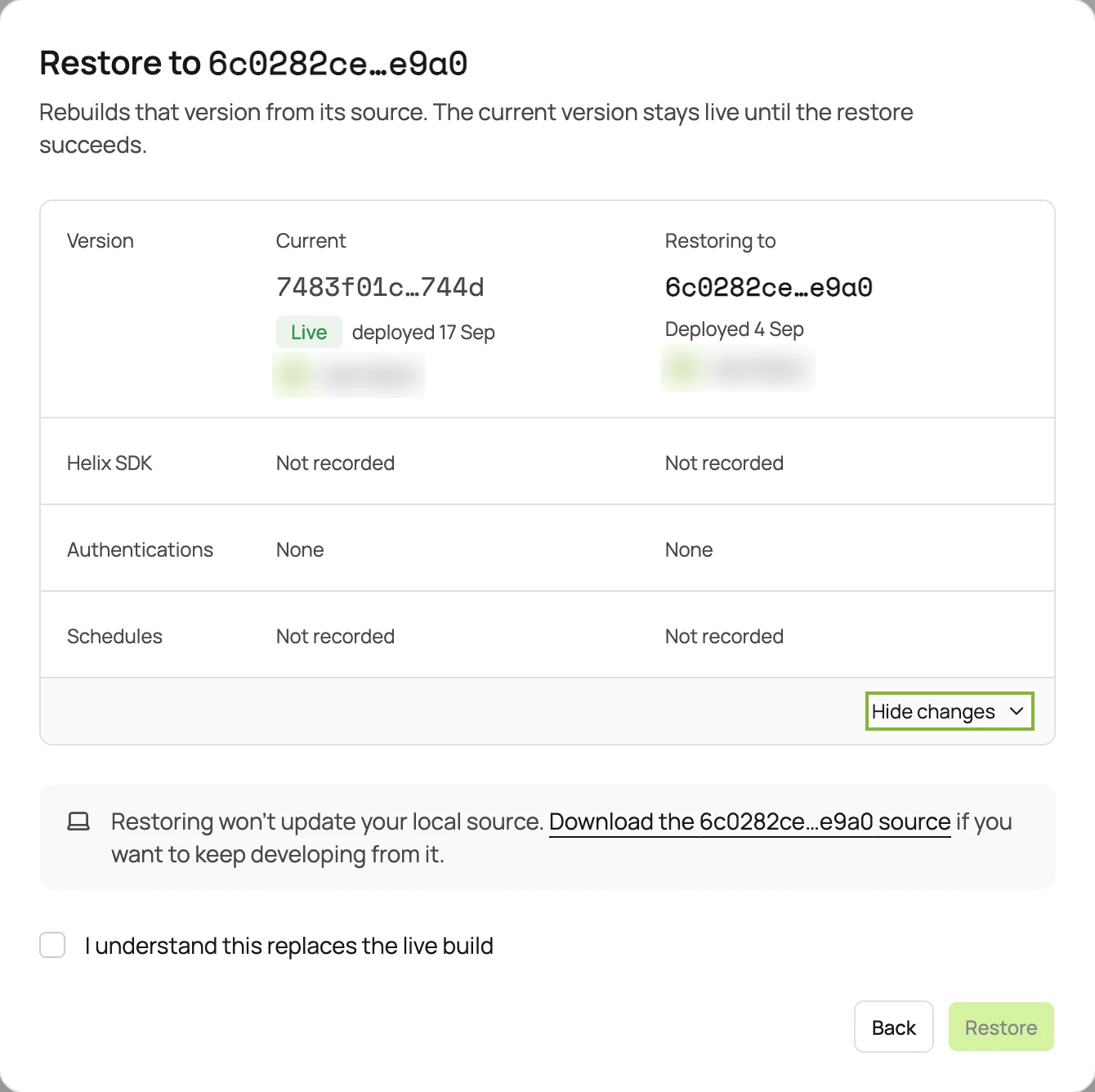
A project’s 17 September deploy, 7483f01c, is live and has a bug. The last deployment that worked is 6c0282ce, from 4 September. Here is what going back to it looks like.
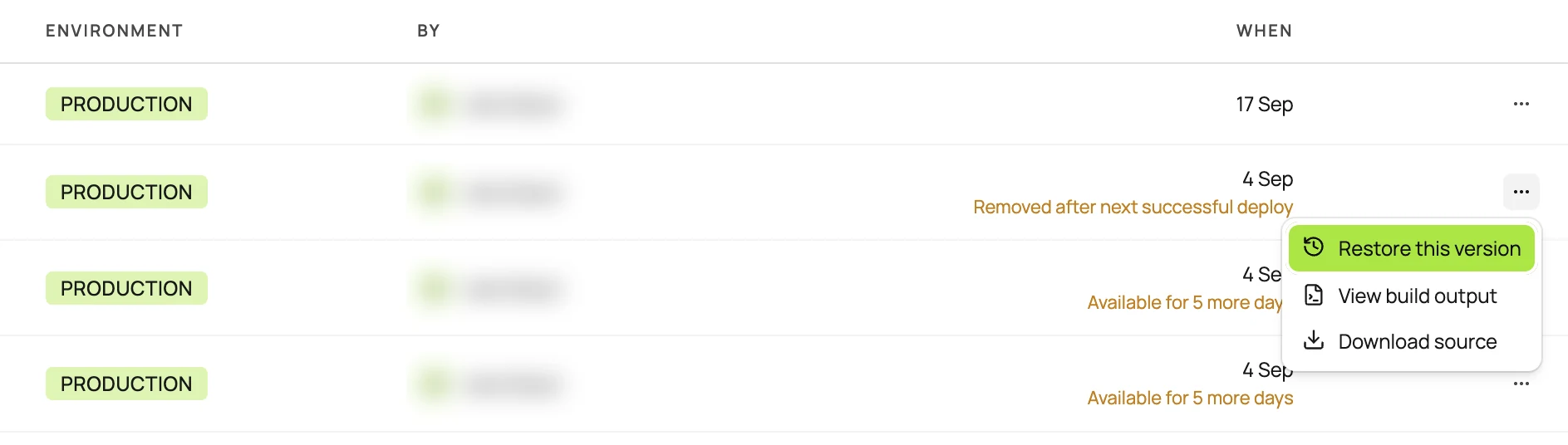
Every row in the Deployments tab has a menu. Choose Restore this version on the deployment you want. Each row also shows how long it can still be restored.
The dialog sets the live deployment beside the one you’re restoring. As well as the version, it compares the Helix SDK, authentications and schedules recorded for each, because two deployments can differ in more than code. It also reminds you that your local source won’t change, with a link to download the restored version’s source. You confirm that the restore replaces the live build before it starts.
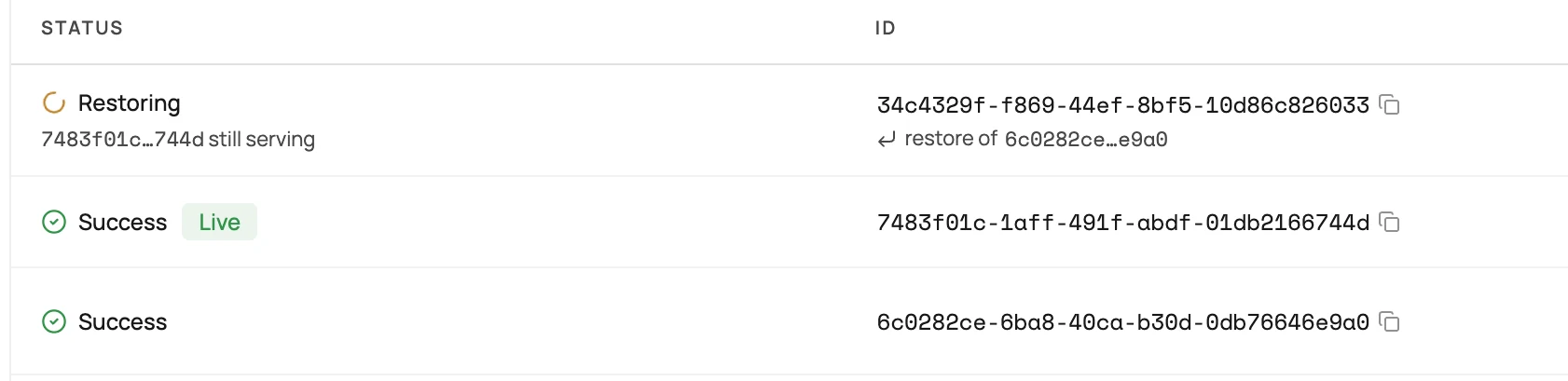
The restore is a new deployment, 34c4329f, and it builds like one, so it takes minutes. While it builds, its row shows that 7483f01c is still serving. If the build fails, it stays that way: the app keeps running the version that was live when you started.
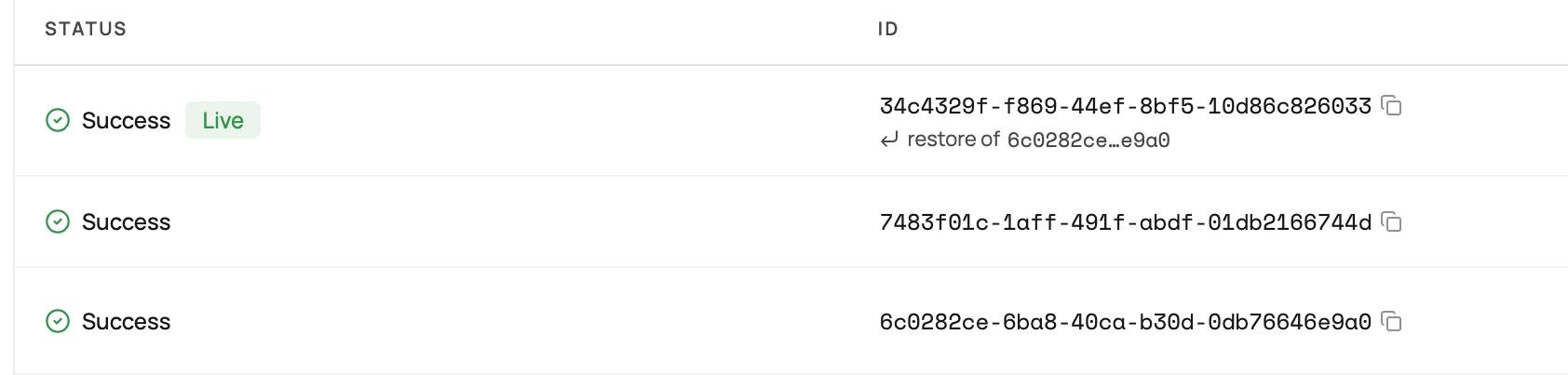
When the build succeeds, 34c4329f goes live, marked as a restore of 6c0282ce. The deployment you went back from is still in the list, so if the problem turns out to be somewhere else, you can restore that one too.
Your data. The key-value store, and anything your app wrote to a connected service, stay as the newer version left them. Restoring the code stops a bad release writing more bad data. Cleaning up what it already wrote is a separate job.
Your working copy. Your next helix deploy ships whatever is in your local project. If the bug is still there, that deploy ships it again. Fix it locally first, or download the restored deployment’s source and carry on from that.
Helix keeps the live deployment, the one just before it for as long as it holds that spot, and every other deployment for 30 days. Restore and source download are dashboard actions; there is no CLI command for either.
Helix keeps the live deployment, the one just before it for as long as it holds that spot, and every other deployment for 30 days. Anything in that window can be restored, and each row in the Deployments tab says how long it has left.
No. Restore brings back code only. The key-value store, and anything your app wrote to a connected third-party service, stay as the newer version left them.
No. Restoring and downloading a deployment's source are dashboard actions, and there is no CLI command for either.
Anyone who can deploy the project. Restoring needs the same access as deploying.
Deploy an app you built with your AI assistant, and see what Helix does with it.
Thanks, keep an eye on your inbox for an invite.
Want to talk to someone first? Contact us